
Copilot Notebooks: The clean room got an upgrade
How Copilot Notebooks has evolved since I last wrote about it in January

Back in January, I wrote about Copilot Notebooks as a “clean room”. You fill it with exactly the sources you want and nothing else and Copilot only sees and uses those sources. Nothing has changed there. What made it useful then still holds up now. If you want to work from a small, clearly defined set of information without pulling in everything else across your tenant, Notebooks is still one of the easiest ways to do it.
What has changed however is the room itself. Not only in how it looks when you step inside, but also in what you’re allowed to bring with you and what you’re able to get out of it. The boundaries are still there, but they’re a lot more flexible than they used to be.
A different look and feel
If you haven't opened Notebooks for a while, or you open it in a different environment than you usually do (like I did), you'll likely get a popup telling you Copilot Notebooks got a refresh. So let’s take a look at what that means in practice.
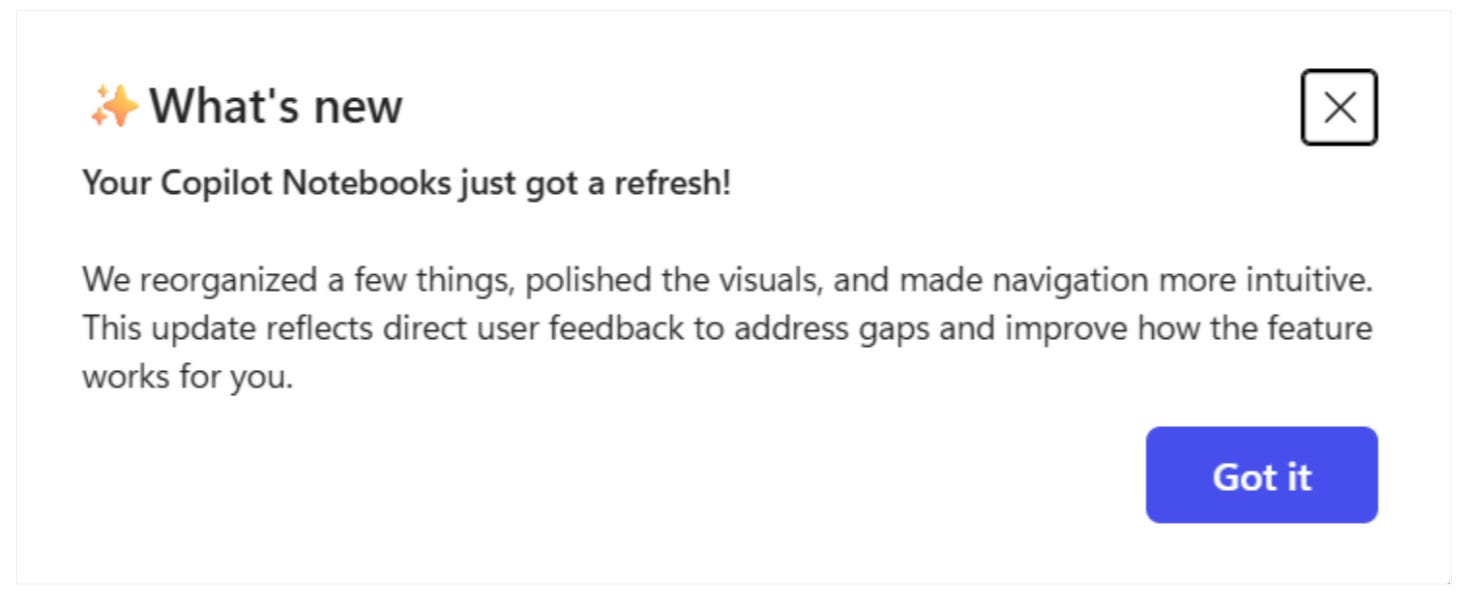
The first thing to know is that Notebooks has moved. It used to live in the left-hand navigation of the Microsoft 365 Copilot app, where you couldn’t really miss it. Now it sits in the waffle launcher in the top-left corner, alongside the other apps. I don’t hate the move, even though it took me a minute to find it. What I’d like a bit less of is Microsoft shuffling small UI things around. So much is changing inside Copilot already and every little move costs people time.
Not long ago I spent longer than I’d like to admit looking for the Copilot button in Word after it quietly moved from the ribbon to a small icon in the bottom-right corner.
Once you know, you know. Until you know, you click everything.
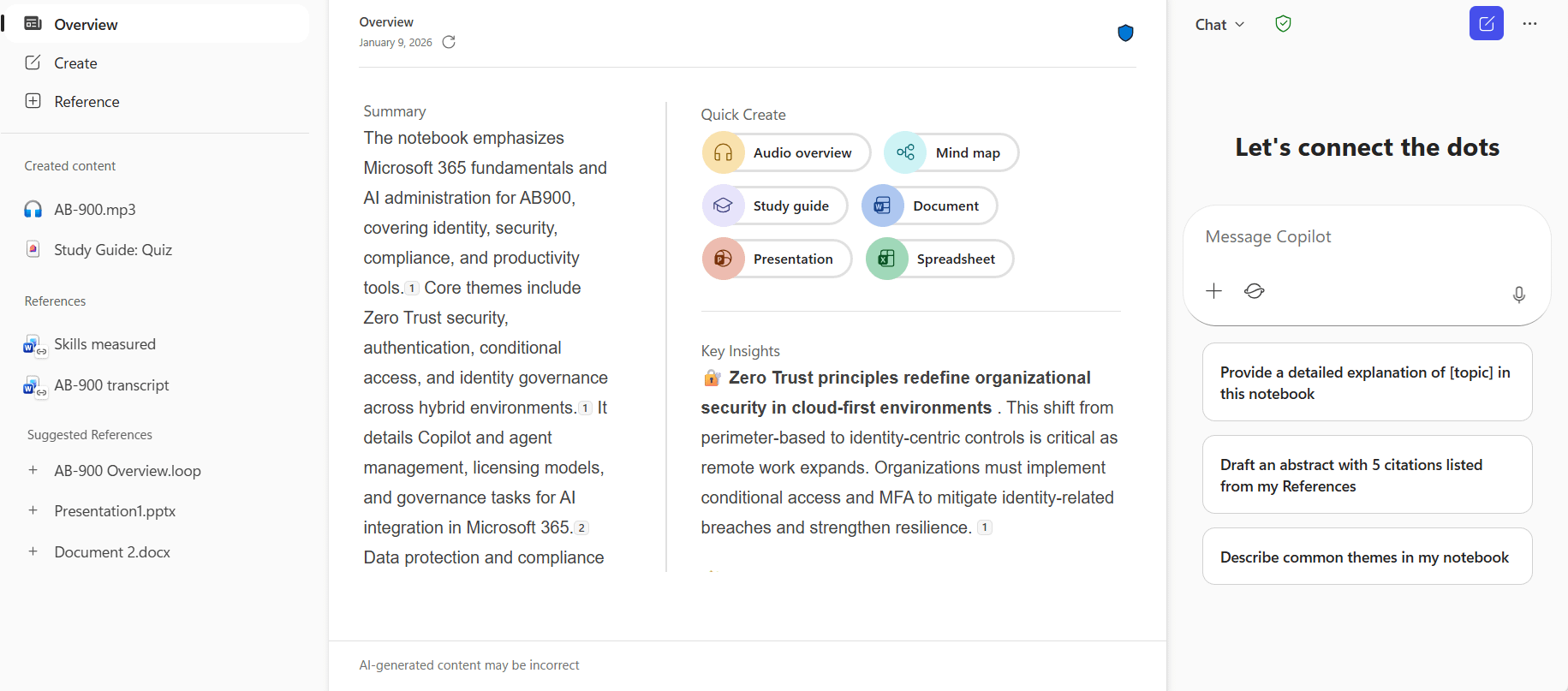
Once you find Notebooks again, you’ll find the inside has changed too. The layout now splits into three columns: your references and navigation on the left, the workspace in the middle and the Copilot chat on the right. On top of that, there’s an Overview page that summarizes what’s in the notebook and surfaces key insights from your sources, and a Create section with quick access to outputs like audio overviews, mind maps, study guides and presentations, the kind of things you used to have to ask for in chat.
What’s in the room now
In the January piece, I called out one specific limitation that got in my way every day: you couldn’t paste a generic web link as a source. You had to point Copilot at an actual file, like a Word doc, a PDF, a Loop page or a OneNote.
Half my AB-900 study material lived on Microsoft Learn at the time and the only way to get it into a Notebook was to copy-paste each page into a Word file first. It worked, but it was the kind of step that makes you wonder if you should just read the page yourself.
More ways to bring content in
The biggest shift since then is in what you can bring into a Notebook. The rule that everything had to be a file is gone.
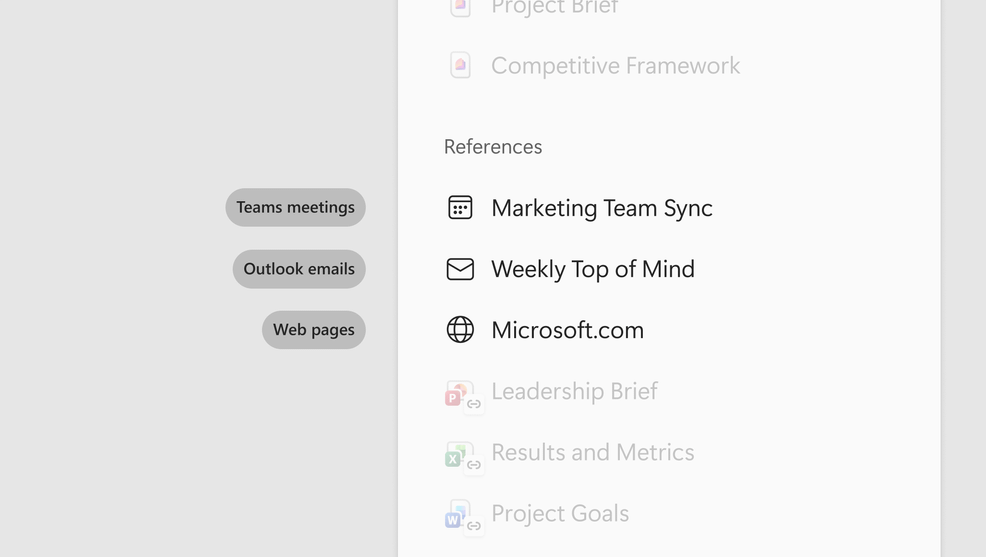
You can now paste a web page and Copilot treats that URL as part of the bounded context. You can drop in a Teams meeting and get the full record, including the transcript, chat, shared files and notes. Outlook email threads are joining that list as well.
Across all of these, the pattern stays the same: pick one specific thing, scope the notebook to it and ask questions about that thing without Copilot pulling in the rest of your calendar or inbox.
SharePoint sites and folders build on that in a slightly different way. Not because you can add more at once, but because they stay up to date. When someone updates a document in that folder, your Notebook quietly picks up the new version. No more re-uploading the same file every time something changes.
More ways to get something out
On the other side of that, the output options have been expanding as well.
You can now ask a Notebook to generate an Excel spreadsheet from its content and Word and PowerPoint agents are available inside the Notebook to turn that same material into a draft document or deck.
More is on the way as well. Microsoft has already announced things like infographic creation, which fits into the same direction. It’s still evolving, but it’s clear where this is heading: not just making sense of your sources, but turning them into something useful.
A small mobile addition
Microsoft also added mobile capture through the OneNote iPhone app. I don’t have an iPhone, so I can’t judge how it feels day to day, but the idea is straightforward: record audio, snap a photo of a whiteboard, add a few notes and Copilot turns it into a structured page. Worth keeping in mind if you work a lot from your phone.
Study guide: from one-shot summary to actual studying
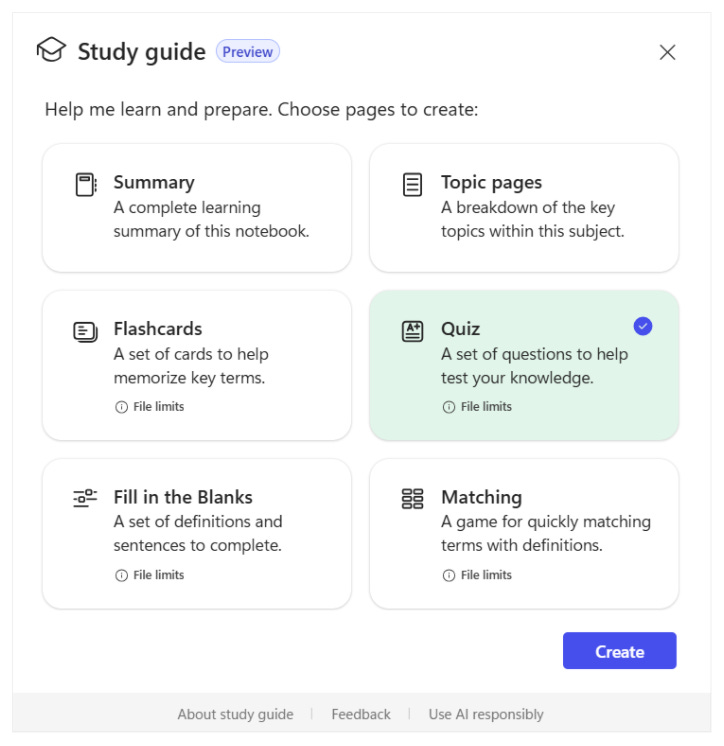
In January I used Notebooks to study for the AB-900 exam and the most useful output by far was the Summary page with topic links. That one is still there, but the Study guide section has grown into something that actually looks like a study tool. Alongside Summary and Topic pages, you now get Flashcards, Quiz, Fill in the Blanks and Matching. The four study formats together cover most of what you'd build by hand if you were prepping for an exam.
Note: The newly added options only work with Word, PowerPoint, PDF and text files that aren’t protected. And if your references are very long, Copilot may only use the first 100,000 characters across all of them. So if you’ve stuffed a Notebook with twelve PDFs, you might not be quizzing on all of them.
Looking at what’s there and what Microsoft has been working on, it’s pretty clear how Microsoft expects most people to use Notebooks: study, prep and learn from a bounded set of material.
The answer is always “B” -problem
If you read the January piece, you’ll remember I spent a fair bit of time complaining about how Copilot handles multiple-choice quizzes. It spoiled its own questions, repeated the same five over and over and parked the correct answer on B with suspicious regularity. The provisional quiz I put together with prompts wasn’t great. Now that Microsoft has built a proper Quiz button, I gave it another go.
What you actually get when you press Quiz is a Microsoft Form. It shows up as a widget inside the Notebook and you can also open the same Form in a separate browser tab. The set I got was ten multiple-choice questions plus two open questions, which is already a step up from what I was working with in January.
In the browser tab, “B” turned out to be correct four times. In the widget version of the same quiz, B was correct only once. The answer options were identical, but the order was shuffled between the two views, which gives me good hope that the answers are actually randomized this time.
The open questions gave me less reason to cheer though. From what I can tell so far, the correct answer isn't always recognized, even when it's clearly right.
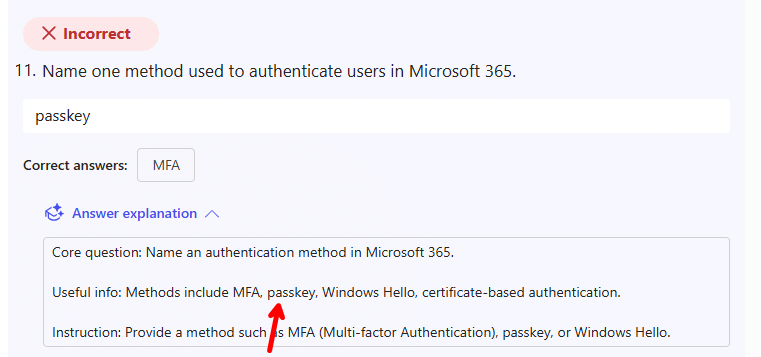
It’s also useful to understand what’s happening behind the scenes. The Form is created in your own Microsoft Forms, with you as the owner and the ability to view your answers to the quiz in the Form responses. The questions appear to be fixed inside the Form, so if you take the same quiz twice you get the same questions. When I created a complete new quiz in the same Notebook, I got some different questions but also quite a bit of overlap. I can't rule out that this is partly because my Notebook doesn't have that much material in it yet.
All in all, it's a clear step up from the prompt-based quizzing in January. I'm just not yet sold on doing it through a Form and especially not on the way it currently shows up inside the Notebook itself.
Note: if you delete a quiz from the Notebook, the Form behind it is not also automatically deleted from your Forms. So if you experiment a lot, you can end up with a pile of leftover Forms you didn’t ask for, unless you clean them up by hand.
Audio overview
The Audio overview, which turns a Notebook into a short podcast-style conversation between two AI hosts, also got an update in May. You can now choose the spoken language and in English you can pick between four different voice duos. In most other languages, there’s still just one option for the voices.
Microsoft’s take still feels a bit behind tools like NotebookLM, which has been pushing this concept further with things like interruptions and follow-up questions. Microsoft has said that’s coming, but I haven’t seen it land yet.
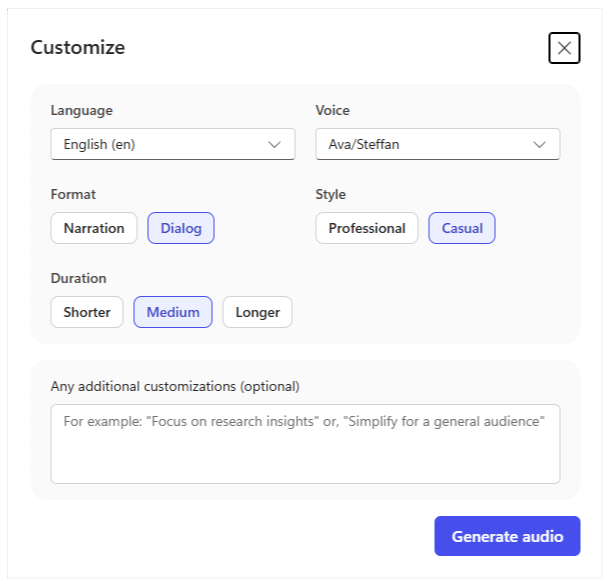
For now, the audio overview is the feature I show when I want to make Notebooks look impressive in a demo and the one I don’t reach for that often when I’m actually trying to get something done.
What I’m still waiting on
To be fair, Microsoft is clearly taking Notebooks seriously. The pace of updates since January says that on its own: a new layout, an overview page, web and meeting sources, SharePoint references, Study guide outputs, Excel and infographic generation, mind maps, Word and PowerPoint agents. All steps in the right direction if you ask me. There’s just still a short list of things I’d like to see sooner rather than later.
Sharing is the first one. In January I wrote that you could finally share a Notebook with someone else. That’s still true, but as far as I can tell, sharing only works with individual people. Sharing with a Microsoft 365 Group or a team would make a lot of the use cases I keep building far less manual.
The second one is the audio overview I mentioned above. The interruption feature has been announced for a while now and I haven’t seen it show up. Once it does, the audio overview becomes a genuinely useful study tool.
Where this leaves me
In January I wrote that sometimes the best thing AI can give you is a little less noise and a little more focus. That’s still why I keep coming back to Notebooks instead of starting fresh in M365 Copilot Chat every time.
The updates since then don’t really change that. The idea is the same, but the room has become a lot more practical to work in. You can bring more in and you can do more with what’s already there.
If you tried Notebooks earlier this year and it felt too restrictive, it’s worth another look once these updates reach your tenant. The limitations that probably pushed you away are starting to lift.
As for me, I passed the AB-900 back in February, partly thanks to a Notebook built around that original “clean room” setup. Now I’m trying to do the same for the AB-100 exam, but this time with web pages and the newer Study guide features doing more of the heavy lifting instead of copy-pasted Word documents. Let’s see how it goes…
Is Copilot Notebooks like Projects in Claude? It sounds similar to me, but I've only used Claude Projects. It always takes months, if not years, for my organisation to get Copilot updates :~