
Microsoft Frontier: Your way into Copilot's early access program
From confusion to clarity (well, mostly)


The first time I came across the Frontier program was in Microsoft’s announcement of the Researcher and Analyst agents. It mentioned that access to those agents would be granted to organizations in the Frontier program, but nowhere did it explain what Frontier actually was. No definition, no enrollment link, no “here’s how to join.” Just... Frontier.
Naturally, I wasn’t the only one scratching my head. Colleagues started asking the same questions I had: What is Frontier? How do we get in? Are we already in? Should we be?
Fast forward a few months and while there’s still a bit of mystery surrounding the program, a lot has become clearer. Frontier isn’t just another preview program, it’s where Microsoft tests the future of Copilot and being part of it can give your organization a competitive edge.
In this article, I’ll walk you through what Frontier actually is, why it matters, how you can enable it and a few things to keep in mind before diving in.

So, what is Frontier?
Frontier is Microsoft’s early access program for new Copilot features. Think of it as a preview environment for AI agents and capabilities that aren’t generally available yet but can already be tested inside your own tenant. No demo environments, no fake data, just your actual emails, SharePoint files, Teams chats, calendars and more. All within the security and familiarity of your own Microsoft 365 environment.
But…
Frontier is experimental by design and Microsoft doesn’t provide any guarantees. That means not everything works perfectly. Some compliance commitments, like the EU Data Boundary, don’t apply. Certain features are only available in English. Some agents might produce unexpected results. And yes, sometimes things break.
What you do have is control. Frontier runs inside your own tenant and you decide who gets access to agents and capabilities. Your existing security and compliance settings still apply at the tenant level, but keep in mind these features don’t come with the same assurances as generally available services.
So yes, these are preview features and capabilities on which you shouldn’t build production processes (for now). And no, your data isn’t suddenly floating around in the cloud.
First steps in the sandbox

Let’s take a look at what Frontier has brought us already to this point.
As stated, the first wave of Frontier features gave us the much anticipated Researcher and Analyst agent. Two agents that felt like having a research assistant and a data scientist on standby. Researcher could dig through internal files and external sources to build structured insights, while Analyst could run Python scripts on your Excel data and surface trends, correlations, and visualizations in minutes.
Then came the Skills agent, which introduced a new way to explore expertise across your organization. Want to know who’s worked with a specific application or who’s got experience in supply chain optimization? Ask the agent.
Now these were cool and (for me) especially the Researcher agent has opened a lot of doors that were previously closed, but it feels like things are really scaling up for Frontier with recent announcements.
Second wave
Beginning with Agent Mode. A new way of working inside Word and Excel where Copilot doesn’t just respond to prompts, it executes multi-step tasks with reasoning and feedback loops. It’s like watching the AI think out loud while building your spreadsheet or rewriting your document.
Then there’s the Office agent, which lives in the Copilot chat interface and can generate full documents or presentations based on a single request. Let’s hope this actually does create nice slides in PowerPoint, as the state it’s in now is severely lacking in my opinion.
Perhaps the most intriguing development: Anthropic’s Claude models are now part of the Frontier experience. These models are known for their reasoning capabilities and long-context handling, and they’re being integrated into specific agents like Researcher and Copilot Studio. Microsoft’s vision is clear: Copilot is becoming a multi-model platform, where you can choose the best AI engine for the job.
If you’re interested in this one, be sure to check out our recent article on the addition of the Anthropic model.
Latest additions
While writing this article, two more announcements were dropped for new additions to the Frontier program.
The first one is Researcher with computer use. Think of this as Researcher 2.0. It goes beyond analysis and can now perform actions. By spinning up a secure virtual PC, it clicks, types, and browses to complete multi-step research tasks while keeping everything auditable and enterprise data off by default. This opens up scenarios like pulling insights from gated content or creating tailored summaries without manual effort. Curious to see how this one holds up when it hits the real world.
The second announcement introduced two new agents: App builder and Workflows agent. App builder helps you create apps by describing what you need. It takes care of the layout, logic and data connections. Workflows agent focuses on automation. You can ask it to set up flows that react to events like file uploads or form submissions. Both are designed to make building and automating easier, even if you’ve never used Power Platform before.
How do you give people access to Frontier?
With all these new agents and features landing in Frontier, the next logical question is: how do you actually give people access? Like any good consultant would say: it depends.
As you might have noticed, Frontier features fall into two main categories:
Frontier agents (like Researcher and Analyst)
Frontier core app features (like Agent Mode and the Office agent)
To make it easy for you, Microsoft has decided to have three(!) different methods of giving access to these, depending on which ‘category’ of the Frontier program and features you’d want to give access to. When writing this article, one of these methods has changed so I guess it’s good thing I take a while writing these…
There is one prerequisite however that is the same regardless of category or method: the end user needs to have a Microsoft 365 Copilot license assigned to them to use Frontier features.

Frontier agents
Frontier agents are available for end users to install and for admins to control through the M365 Copilot Agent store, just like any other M365 Copilot agent. For M365 Copilot agents in general you have quite some options and settings to tweak and configure and these are also applicable for your Frontier agents. You can for instance configure if you want people to have access to agents, if certain categories of agents will be available to all or some users by default and can also only allow access after someone requests access. For all controls see the Microsoft documentation here.
When someone installs a Frontier agent, it will become available for them to use in their M365 Copilot experience (desktop app, web version or through a M365 app like Teams and Outlook).
Frontier core app features
One method down, two to go. Giving access to Frontier features in your core apps is separated again, between web applications and desktop applications.
M365 Web apps
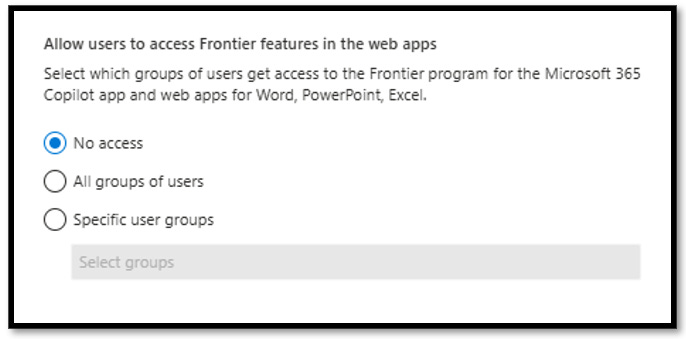
Let’s start with the easiest one. To configure who has acces to Frontier core app features in their web apps (like Word, PowerPoint etc.) you can simply go to the Copilot Frontier section in the M365 admin center and configure if you want everyone (with a M365 Copilot license) to have access, nobody or just a certain group. Well, that was what I was going to write, until I saw Microsoft decided to change this (communicated in Message Center item MC1181201). They wrote:
To improve clarity and control over Frontier feature access, Microsoft is updating the Frontier Admin Control in the Microsoft Admin Center. Starting November 10, 2025, administrators will no longer be able to assign access using groups. This change aligns with feedback to simplify access management and ensure transparency in user-level assignments.
While I’m not convinced this actually simplifies access management (I’d actually argue the opposite), it’s good to be aware that from November 10 onwards, you’ll need to assign access on a per-user basis.
M365 desktop apps (Windows & Mac)
That leaves us with the desktop applications and that’s where things get a bit more technical. Because to enable Frontier features, users need to be part of the Microsoft 365 Insider Beta Channel (Current Channel (Preview) won’t work).
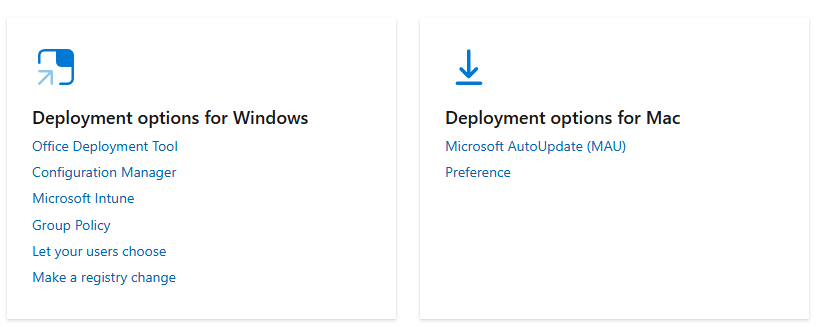
How you set this up depends on how you deploy and manage M365 apps in your organization. I won’t go into every method here (this article is long enough already), but I won’t leave you hanging either. Microsoft has published a dedicated page for business environments with all deployment options for Windows and Mac: Microsoft 365 Insider (for business)
Wrapping up
Getting started with Frontier means accepting a bit of ambiguity. The setup isn’t always straightforward and the rules can shift without much warning. But that’s part of working with emerging tech. If you build in some flexibility and keep your users informed, you’ll be able to adapt as things evolve and stay ahead of the curve.
You’ll have users who are already comfortable with the new way of working. You’ll have internal champions who can guide others. You’ll have direct influence on Microsoft’s roadmap through feedback. And most importantly you get to work with some really cool features which offer new possibilities and opportunities.
Frontier is still evolving and chances are that by the time you read this, something new has already been added or changed again. But that’s kind of the point. It’s not a finished product, it’s an evolving and changing program. And that’s exactly what makes it interesting. If you’re curious about where Copilot is heading and want to be part of shaping that future, Frontier is where you want to be. Just be ready for a few bumps along the way.